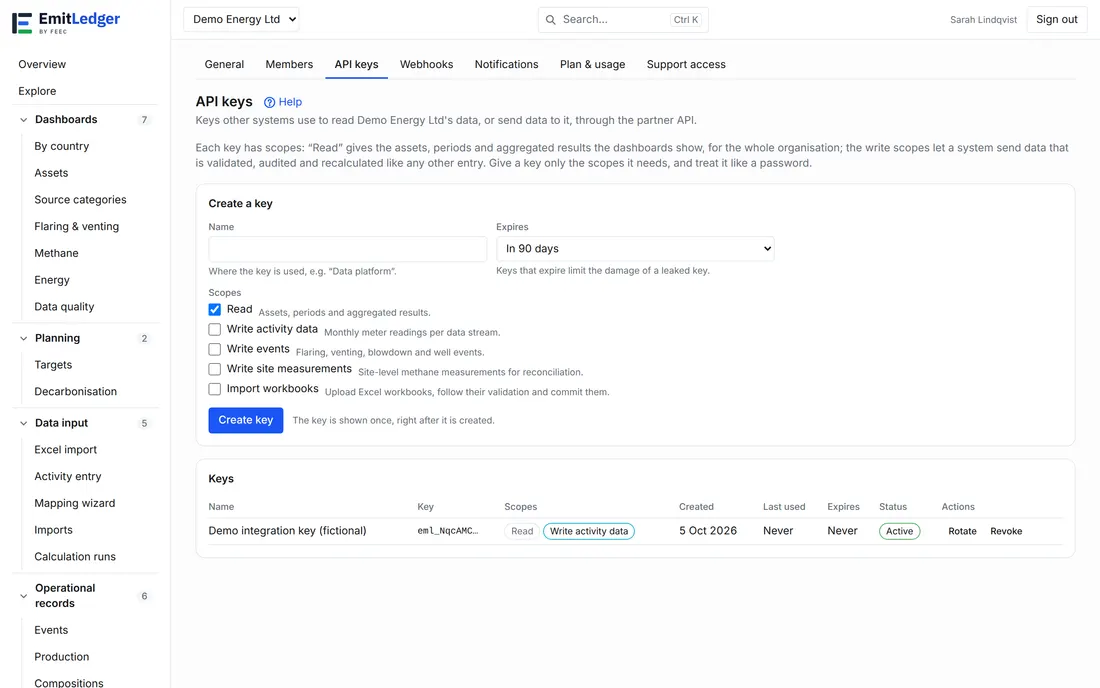
API keys let another system, such as a historian, an ERP or a vendor’s platform, work with your organisation’s data without a person signing in. This page is the full guide; the short version is in Members. Keys are managed by client admins under Settings → API keys.
API access is part of some plans only. When your plan does not include it, the page says so, existing keys stay listed and can be revoked, and every API call is refused. See Plan & usage.
Scopes
A key can do only what its scopes allow. Choose the fewest it needs.
| Scope | What the key can do |
|---|---|
| Read | List assets, emission sources and data streams, reporting periods, activity values, results and result lines, for the whole organisation. The aggregated results are the same numbers the dashboards show. |
| Write activity data | Send monthly values for a data stream (a meter reading, for example), and also monthly production, gas compositions, energy instruments, inventory counts and LDAR findings. |
| Write events | Send flaring, venting, blowdown and well events. |
| Write site measurements | Send site-level methane measurements for reconciliation. |
| Import workbooks | Upload Excel workbooks, follow their validation and commit them. See Import an Excel file. |
A key that only pushes data does not need Read. Scopes are fixed when the key is created: to change them, create a new key and revoke the old one.
Create a key
- Enter a Name that says where the key is used, for example the name of the system.
- Choose when it Expires: never, after 30, 90 or 365 days, or on a date you pick. A key stops working on its expiry date.
- Tick the Scopes. Read is ticked by default; at least one scope is needed.
- Click Create key. The key is shown once. Click Copy and store it in the secret store of the system that will use it.
A key is a secret like a password: never put it in a repository, in a web address or in a browser application. A lost key cannot be shown again; revoke it and create another.
Use a key
Send the key with each request, in one of these two headers:
Authorization: Bearer <your key>X-API-Key: <your key>
The partner API lives under the /api/v1/partner/ path of your organisation’s API address. Its reference is published as an OpenAPI description; ask your administrator or EmitLedger contact for the address of your deployment. The usual first calls are the lists of assets and sources: they give the identifiers that writes refer to.
Lists are paged: follow next_cursor until it is empty, and use limit to choose the page size.
Send data
Writes accept 1 to 200 items per request and answer one result per item, so a rejected item never blocks the others. Each item needs an external id, your own identifier of the record, prefixed with your system’s name. Sending the same item again is always safe: it is reported as unchanged or duplicate. To correct a value, send it under a new external id.
Data sent through the API goes through the same checks as an Excel import or manual entry:
- locked months are refused, and a restatement reopens them;
- a month that was submitted, reviewed or approved goes back to open, and the person who submitted it is notified;
- units must match the data stream, and are never converted;
- every change is written to the audit log and queues a recalculation.
A key with a write scope acts with the authority of the client admin who created it, and the audit log shows the change as API key (created by …). If that person leaves the organisation, the key can no longer write; reading is not affected. The person’s role and access limits also decide which assets the key can write to.
Import an Excel file
A key with Import workbooks can do what a person does on the Excel page, with the same checks, findings and locked-month rules:
- Upload the filled template (or a file with a saved column mapping) for one asset. Reading the file runs in the background.
- Ask for the import’s status until it is validated. The answer lists the findings.
- Commit it. If the import has warnings, the commit must state that they are acknowledged, as a person ticks on the import page.
The imported rows are audited as the key, and the webhook events import.committed and import.failed report the result without asking again. See Excel import and Webhooks.
Rotate and revoke
- Rotate gives a key a new secret and keeps its name, scopes, expiry and history. The old secret stops working at once, so update the other system in the same change window.
- Revoke stops a key immediately and cannot be undone.
The list shows each key’s first characters, its scopes, when it was created and last used, and when it expires. Revoke keys that are not used. Creating, rotating and revoking keys is recorded in the audit log.
Limits and errors
| Response | What it means |
|---|---|
| 401 | No key, or the key is unknown, revoked or expired |
| 402 | Your plan does not include API access |
| 403 | The key lacks the scope for that call, the organisation is not active, or the key’s creator is no longer a member |
| 413 | The request is too large |
| 429 | Too many requests; wait the number of seconds in the Retry-After header |
Each key has its own request limits for reading and for writing, so one busy integration does not slow the others.
Related
- Webhooks: be told when something changes instead of asking again and again
- Members
- Plan & usage